Connect Zerodha Kite to Wicklog — Import Your Trades & Journal Smarter
Stop entering trades manually. Wicklog's Zerodha Kite integration imports your entire trade history so you can focus on journaling and improving.
If you're a serious trader using Zerodha Kite, you already know the pain — the market closes, you want to journal your trades, but first you have to manually enter every single one. Symbol, quantity, price, buy or sell. By the time you're done, the motivation to actually reflect is gone.
Wicklog's Zerodha Kite integration fixes this completely. With one click, all your trades land directly in your journal — ready for you to write notes, analyse your decisions, and track your progress.
What Is the Wicklog + Zerodha Kite Integration?
Wicklog is a trading journal built for Indian traders. The Kite integration connects your Zerodha account to Wicklog using the official Zerodha Kite Connect API — so your trades are fetched on-demand, with zero manual data entry.
Once connected, you can:
- Fetch all your trades for current day range in your Kite account
- Write journal entries on top of each trade — your reasoning, emotions, mistakes, lessons
- Attach chart screenshots of your setups to each trade
- See your trading stats — win rate, net P&L, average risk-reward, best and worst instruments
The Problem This Solves
Most traders who want to journal give up within a week — not because journaling isn't useful, but because manual entry is exhausting.
Manual data entry is slow. If you take 10–15 trades a day, entering each one takes 30–45 minutes. That time is better spent reviewing and reflecting.
Copy-paste errors happen. A wrong quantity or price makes your stats meaningless. You end up trusting your journal less.
Momentum breaks. Journaling works best right after a trade, while your thinking is fresh. If setup is tedious, you delay — and delay becomes never.
Spreadsheets don't scale. Google Sheets can track numbers, but can't help you see patterns in your thinking, tag trades by strategy, or link chart screenshots to entries.
The Kite integration removes every one of these blockers. Your trades are already there when you open Wicklog — all you have to do is write.
Before You Start
This feature is available on the Wicklog Pro plan. You will need:
| Requirement | Details |
|---|---|
| Wicklog Pro account | Upgrade from your dashboard if needed |
| Active Zerodha Kite account | Any resident Indian Kite account |
| Time to set up | About 2 minutes |
On the free plan? You can still add trades manually. Upgrade to Pro to unlock the Kite integration and all advanced analytics.
How to Connect Zerodha Kite to Wicklog (Step-by-Step)
Step 1 — Go to Settings → Brokers
Log into your Wicklog Pro account. Click your profile avatar in the top-right corner. A dropdown menu will appear — select Settings.
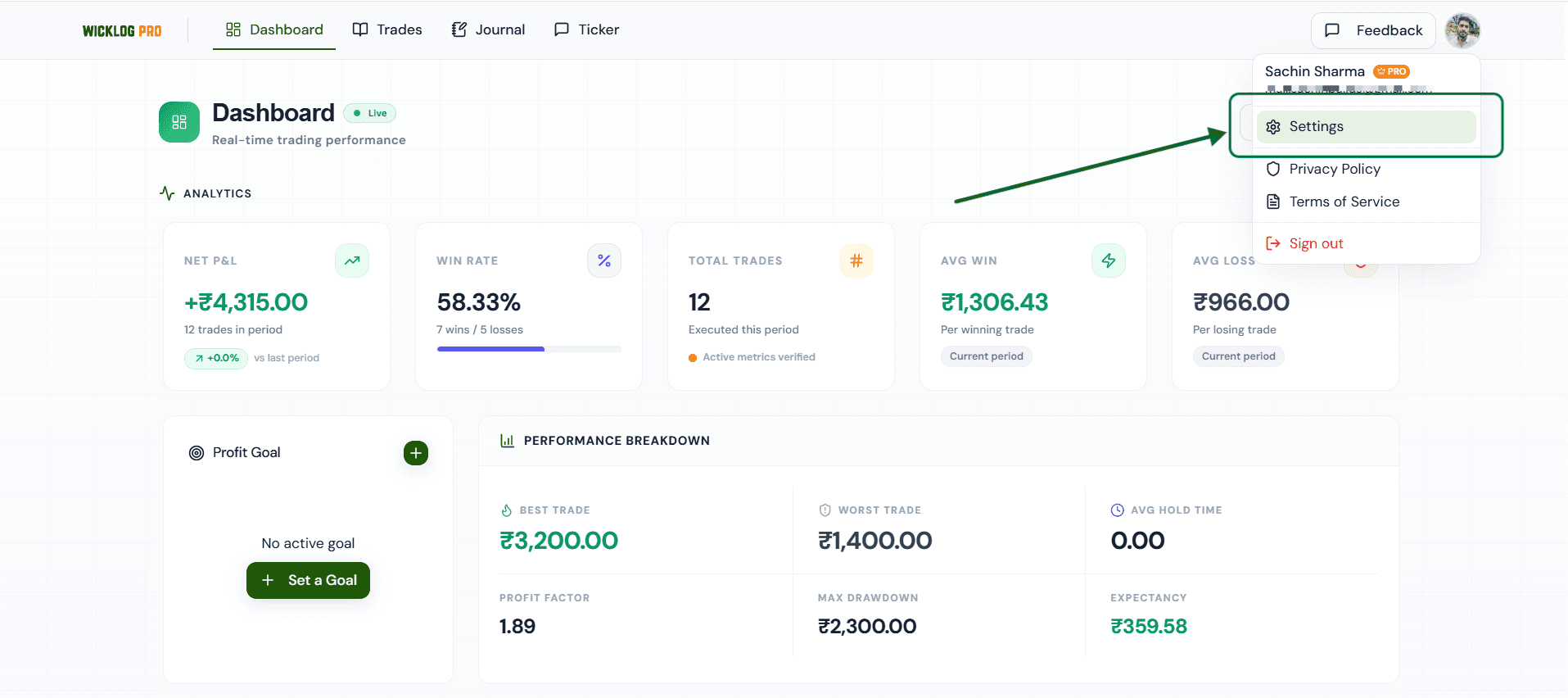 Wicklog dashboard showing the profile dropdown menu with Settings option highlighted
Inside Settings, click the Brokers tab in the left sidebar. You'll see two broker options: Dhan and Zerodha Kite.
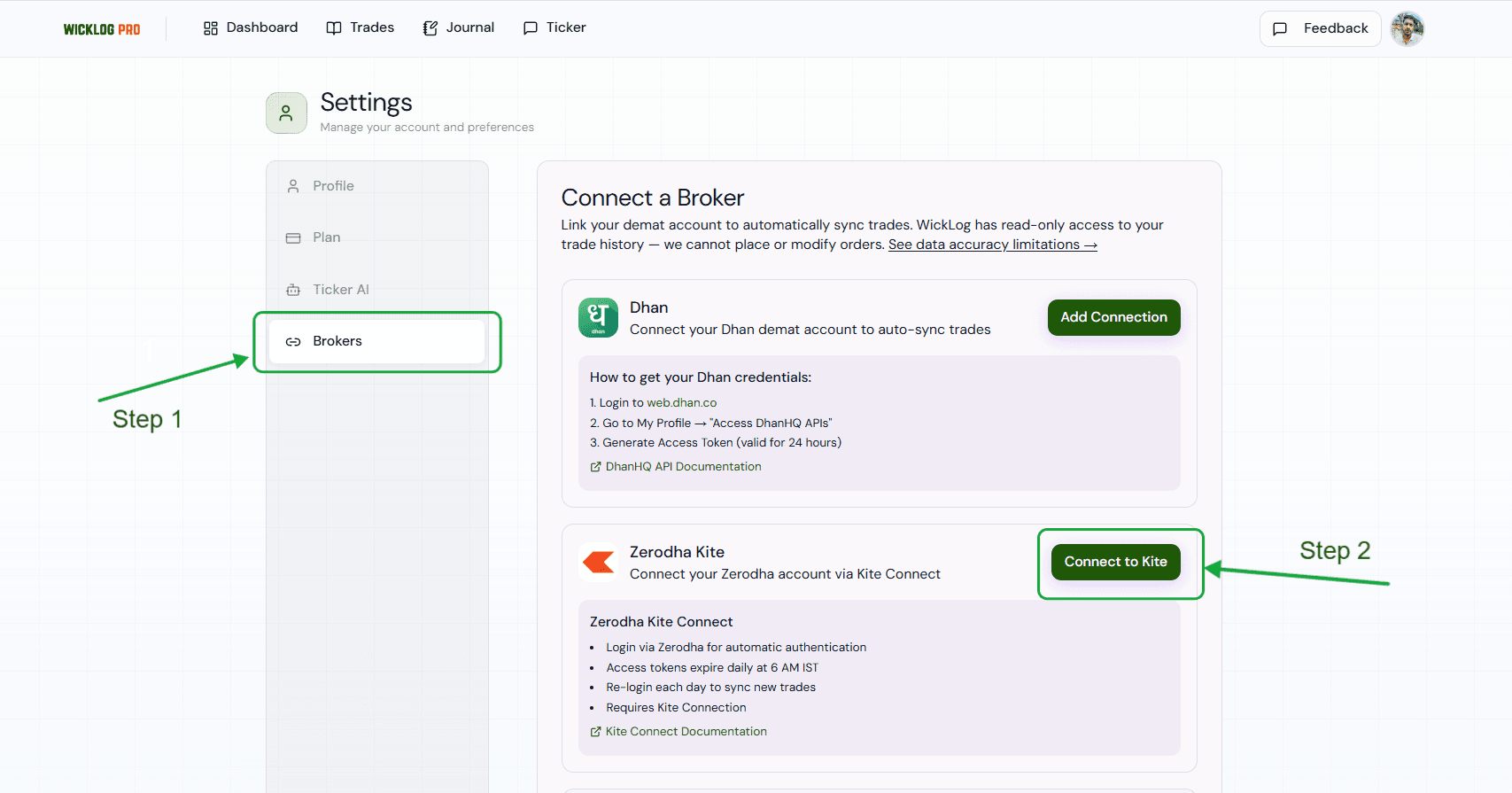 Wicklog Settings → Brokers tab showing Connect a Broker section with Zerodha Kite option
Under the Zerodha Kite section, click Connect to Kite.
Step 2 — Log In to Zerodha
You'll be redirected to Zerodha's official login page. Enter your Kite User ID and password, then complete 2FA (TOTP or SMS OTP).
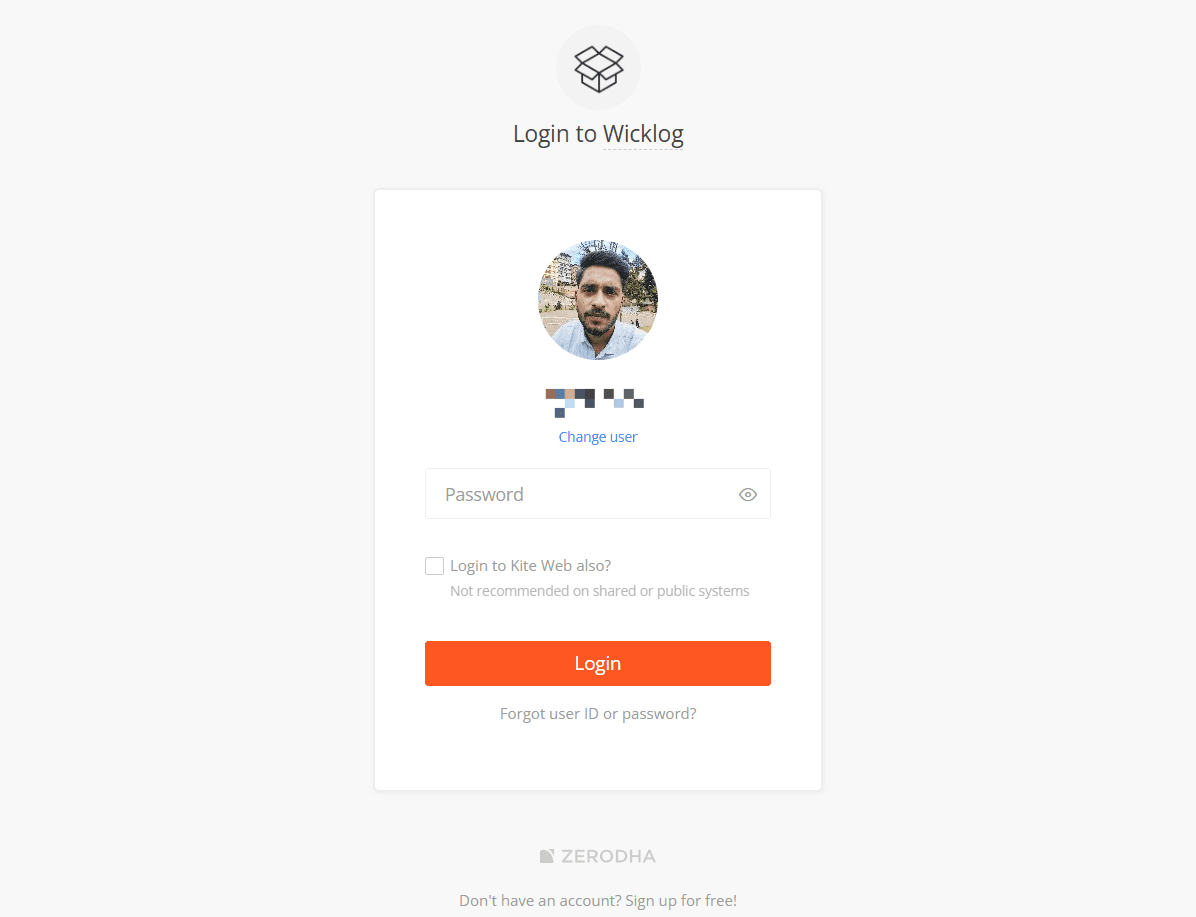 Zerodha Kite login screen showing the Wicklog OAuth flow
Zerodha handles the entire authentication on their own servers — Wicklog never sees your username, password, or OTP.
Step 3 — Confirm the Connection
Once authenticated, you'll be redirected back to Wicklog automatically. Your Kite account will now show as Connected in the Brokers settings page.
 Wicklog Settings → Brokers showing Zerodha Kite as successfully connected
Step 4 — Import Your Trades
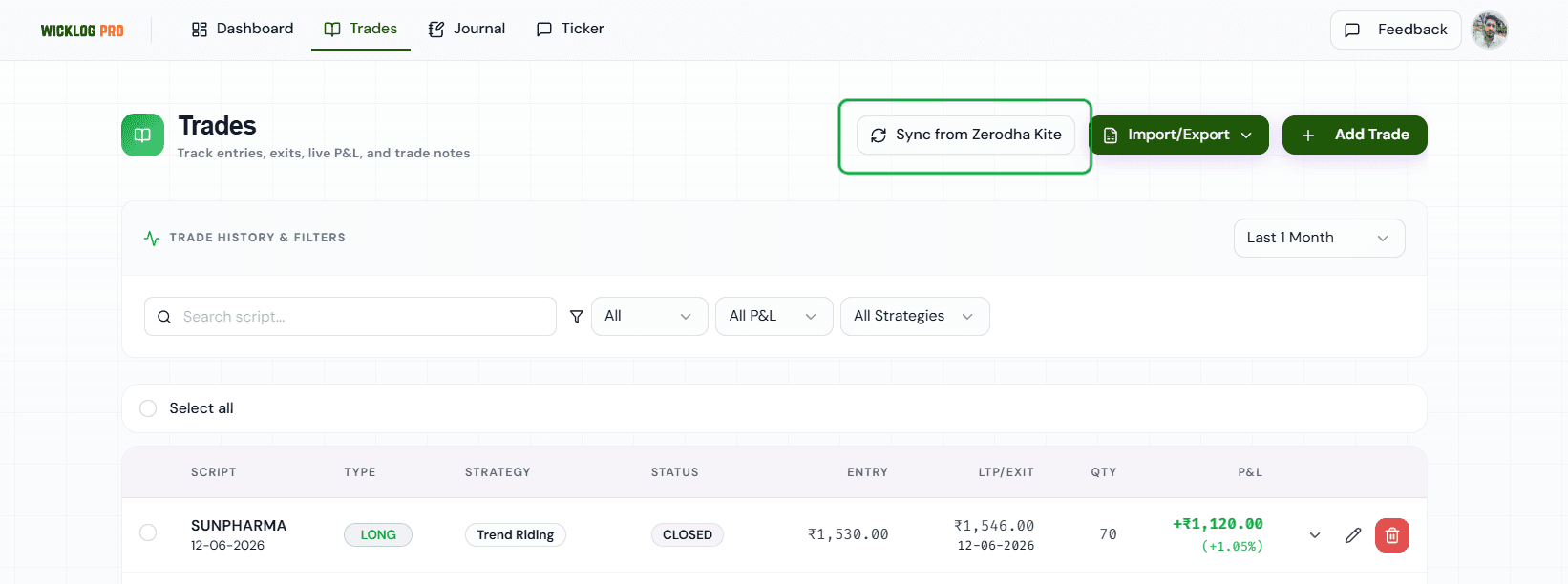
Navigate to the Trades page from the top navigation. You'll see a new Import from Zerodha Kite button at the top right.
 Wicklog Trades page showing the Import from Zerodha Kite button
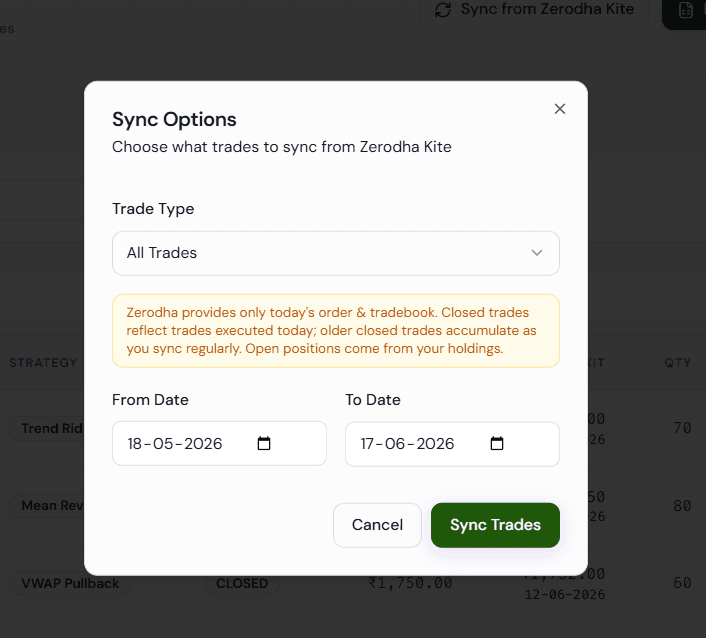
Click it to open the Import Options modal. Here you can:
- Choose Trade Type (All Trades, or filter by type)
- Set a From Date and To Date for the range you want to import
Important: Zerodha provides only today's order & tradebook via the API. Closed trades reflect trades executed today; older closed trades accumulate as you sync regularly. Open positions come from your holdings.
Once your date range is set, click Import Trades. Your trades will appear in the journal within seconds.
What Your Journal Looks Like After Import
Every imported trade shows up as a row in your Trades list. Each entry shows:
- Instrument name and exchange (NSE / BSE)
- Trade type (LONG / SHORT)
- Strategy tag
- Status (OPEN / CLOSED)
- Entry price and exit/LTP price
- Quantity
- Realised P&L with percentage
On top of this, you can add:
- Journal notes — your pre-trade plan, what happened, what you'd do differently
- Chart screenshots — attach your TradingView or Kite chart image directly to the trade
- Strategy tags — label trades by strategy (breakout, momentum, reversal) for later filtering
- Execution rating — score the quality of your execution, separate from whether you made money
Your Dashboard processes all of this and shows:
| Stat | What it tells you |
|---|---|
| Net P&L | Total realised profit / loss |
| Win Rate | % of trades closed in profit (e.g. 58.33%) |
| Total Trades | Count of trades executed in the period |
| Avg Win | Average profit per winning trade |
| Avg Loss | Average loss per losing trade |
| Best Trade | Highest single-trade profit |
| Worst Trade | Largest single-trade loss |
| Profit Factor | Ratio of gross profit to gross loss |
| Max Drawdown | Peak-to-trough decline |
| Expectancy | Average expected return per trade |
How Secure Is the Kite Integration?
Security is something we take seriously at Wicklog. Here's exactly how it works.
Read-Only Access — Always
When you authorize Wicklog, you grant read-only permission. Wicklog can only read your trade history. It cannot:
- Place, modify, or cancel orders
- Access your funds or holdings for transactions
- Transfer money in any form
This is enforced at the API level by Zerodha — not just a promise we make.
Your Kite Password Never Touches Wicklog
Authorization happens entirely on Zerodha's own servers. You log in directly on Zerodha's page — Wicklog never sees your username, password, or TOTP. Wicklog only receives a short-lived access token issued by Zerodha after you authorize.
Note: Kite Connect access tokens expire daily at 6 AM IST. You'll need to reconnect each morning to import new trades.
This is the same OAuth 2.0 standard used by banks and major financial apps.
Revoke Access Any Time
You are always in control. To disconnect:
- Go to Zerodha Kite → Apps & Permissions
- Find Wicklog and click Revoke Access
Or disconnect directly from Wicklog → Settings → Brokers → Disconnect.
Once revoked, Wicklog loses all access to your Kite data immediately.
How We Store Your Data
We believe you deserve to know exactly what happens to your data.
What we store: Trade details — symbol, quantity, price, timestamps, P&L — along with your journal notes, tags, and screenshots. This powers your stats dashboard and makes your journal searchable.
What we don't store: Your Kite login credentials, password, or TOTP. The access token from Zerodha expires automatically and is not retained beyond the active session.
Where your data lives: All data is stored on secure cloud servers with encryption at rest and in transit (HTTPS / TLS). We do not sell your data to anyone. Your journal is private — only you can see it.
You own your data: Export your full journal and trade history at any time from Settings → Export Data. We will never hold your data hostage.
We don't run ads. We don't sell data. The only way Wicklog grows is if it genuinely makes you a better trader.
Frequently Asked Questions
Does the Kite connection expire? Yes. Kite Connect access tokens expire every day at 6 AM IST. You need to reconnect from Settings → Brokers each morning before syncing that day's trades.
Does Wicklog work with Zerodha Coin (mutual funds)? Not yet. The integration currently fetches equity and F&O trades from your Kite trading account. Coin support is on the roadmap.
What if I re-fetch a date range I already imported? Existing journal entries, notes, tags, and screenshots are never overwritten. New trades are simply added.
Does this work on mobile? Yes. Wicklog is fully responsive. Fetch trades and journal from your phone right after the market closes.
What about NRI accounts? We currently support resident Indian Zerodha accounts. NRI support is on the roadmap.
I also trade on other brokers. Can I still use Wicklog? Yes. Wicklog also supports Dhan, and Groww via API connection, and you can add trades from any other broker manually. More integrations are coming.
Why Wicklog Is Built for Indian Traders
Most trading journals are built for US traders — they support Robinhood and Interactive Brokers. Indian instruments like Nifty futures, Bank Nifty options, and NSE/BSE equities are an afterthought.
Wicklog is built from the ground up for the Indian market. We understand how Kite works, how SEBI regulations affect trade reporting, and what Indian traders actually need to grow. The Zerodha Kite integration is just one part of that commitment.
We're a small, independent team. We don't have investor pressure to monetize your data or show you ads. The only way we grow is if the product genuinely helps you become a better trader.
Quick Recap: How to Connect Zerodha Kite to Wicklog
- Settings → Brokers (via profile dropdown in top-right)
- Click Connect to Kite under Zerodha Kite
- Log in with your Zerodha credentials on Kite's page
- Return to Trades → click Import from Zerodha Kite
- Choose your date range and click Import Trades
That's it. Your trades are in. Now go journal them.
If you're already on Wicklog Pro, connect your Kite account right now from Settings → Brokers.
Not on Pro yet? Start a free trial — no credit card required. Your trades are already happening. The only question is whether you're learning from them.